ScamBook User Guide
Introduction
What is ScamBook?
ScamBook is a desktop contact management app optimised for use via a Command Line Interface (CLI) while still having the benefits of a Graphical User Interface (GUI). ScamBook allows users to track large numbers of contacts with flexible user-defined information metrics. It is equipped with features for users to define and manipulate specific details for each profile, offering maximum freedom to record, filter, and sort any detail. Plus, enjoy ultimate security with 100% locally stored data, erasable instantly.
Who is ScamBook for?
ScamBook is designed for Singapore-based investment and financial scam callers managing a high volume of victim contacts daily. If you are a scammer who:
- is tech-savvy and prefer typing to clicking, and comfortable with command line interfaces (CLI);
- operates as a solo caller and need a private, single-user system to manage your contacts;
- handles hundreds to thousands of contacts and need a system that can scale to your needs;
- needs to manage and update contacts on-the-go during live calls;
ScamBook is the app for you!
Quick start
Installation
Ensure you have Java
17or above installed in your Computer.
Mac users: Ensure you have the precise JDK version found here.Download the latest
.jarfile from here.Copy the file to the folder you want to use as the home folder for your ScamBook.
Double-click on the
.jarfile to run the application. If the application does not launch, refer to troubleshooting for alternate ways to launch the application.
Overview
A GUI similar to the below should appear in a few seconds. The app contains some sample data for you to use.
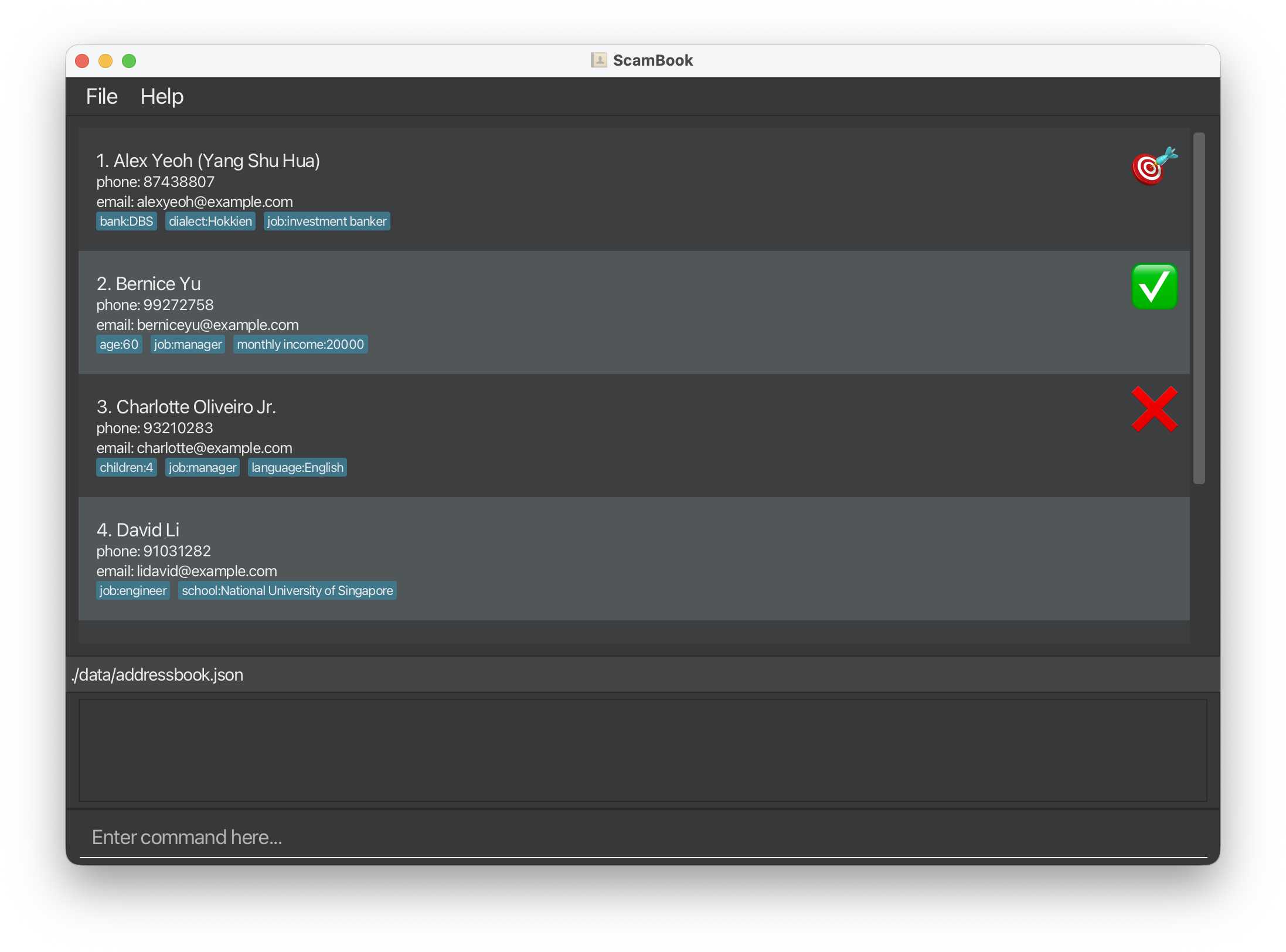
The top part of the application is the contact list - you can view contacts there.
The box at the bottom that reads "Enter command here..." is where you enter commands. This is where you get to interact with ScamBook!
Entering a Command
Suppose our contact list has 6 people in it. This example will show how to add a 7th contact.
We can use the add command to create a new contact. In the box at the bottom, type add.

Upon typing add, the format for the rest of the command will appear.
The command's format is add NAME [--phone PHONE] [--email EMAIL] [--tag NAME:VALUE]....
Each command's format is given as a sequence of compulsory parameters, and optional parameters denoted in square brackets [].
In this command, NAME is a compulsory parameter, while phone, email and tags are optional parameters.
Suppose we want to add a contact with the following information:
- Name: John Doe
- Phone: 88463679
- Extra information:
- Job: teacher
We can enter the command add John Doe --phone 88463679 --tag job:teacher and press enter.
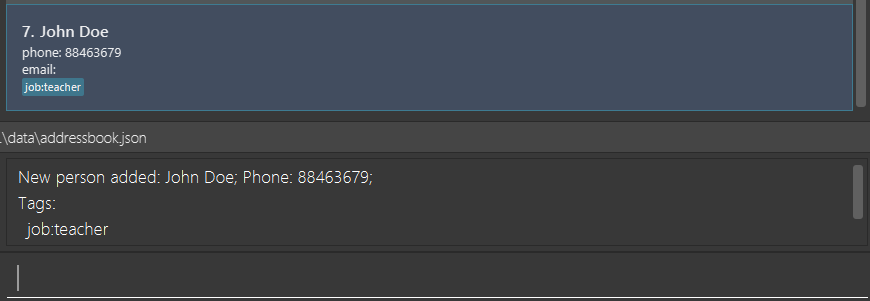
We can see that we have created a new contact John Doe.
To understand more about how to interpret the command formats, refer to Command Format Information.
Refer to the Command List below for details of each command, or the Commands Summary section for a quick summary of all commands and their formats.
Command Format Information
Words in
UPPER_CASEare the parameters to be supplied by the user. They can contain spaces and special characters (exceptINDEX, which expects a single positive integer).
e.g. inadd NAME,NAMEis a parameter which can be used asadd John Doe.Parameters in
[square brackets]are optional.
e.gNAME [--phone PHONE]can be used asJohn Doe --phone 88463679or asJohn Doe.The Parameter
INDEXrefers to the number on the left side of the address book.- For example, the delete command has the format
delete INDEX. If we typedelete 4, ScamBook will delete David Li's entry in the below example: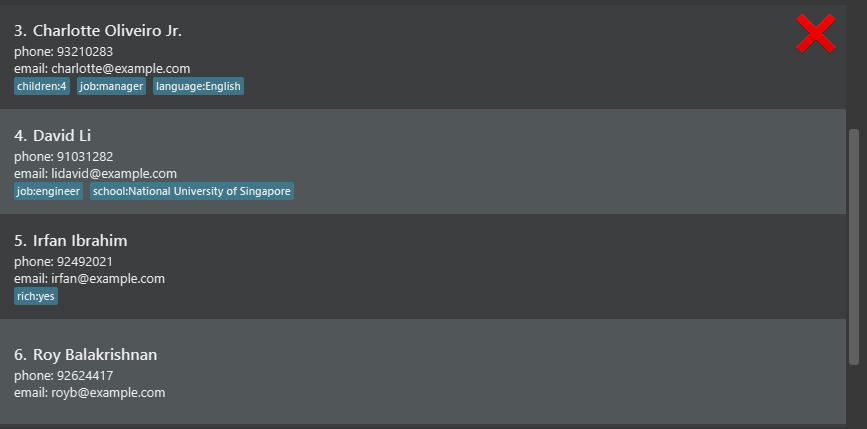
- For example, the delete command has the format
Parameters with
… after them can be used multiple times (including zero times).
e.g.[--tag NAME:VALUE]…can be used as--tag school:NUS,--tag school:NUS --tag salary:10000etc.- For each parameter that can be used multiple times, each command should contain up to 100 of such parameters.
- In the above example of
[--tag NAME:VALUE]…, the command should have up to 100 occurrences of--tag. Above this, the behaviour is undefined.
Mandatory parameters must come before optional parameters.
e.g. if the command specifiesNAME [--phone PHONE],--phone 88091246 Johnis not acceptable.Optional parameters can be in any order.
e.g. if the command specifies[--phone PHONE] [--email EMAIL],--email john@example.com --phone 91842739is also acceptable.If you are using a PDF version of this document, be careful when copying and pasting commands that span multiple lines as space characters surrounding line-breaks may be omitted when copied over to the application.
Commands
Viewing command history
Similar to the command line interface of a terminal, you can use the up and down arrow keys to view your command history. This allows you to easily reuse or modify previous commands without having to retype them.
Adding a person: add
Adds a person to the ScamBook.
Format: add NAME [--phone PHONE] [--email EMAIL] [--tag TAGNAME:TAGVALUE]...
- Duplicate names are allowed, since it is likely one might encounter multiple people with the same (first) names. Hence, ScamBook supports having multiple people with the same name.
- If multiple tag name-value pairs have the same tag name (see section on Tag below regarding tag name equality), the last value will be used.
Examples:
add John Doe --phone 98765432 --email johnd@example.com --tag address:John street, block 123, #01-01add Betsy Crower --tag income:$100000 --tag bank:OCBC
Editing a person : edit
Edits an existing person's name, phone number or email. For editing tags, see the Tag Command.
Format: edit INDEX [--name NAME] [--phone PHONE] [--email EMAIL]
- Edits the person at the specified
INDEX. The index refers to the index number shown in the displayed person list. The index must be a positive integer 1, 2, 3, … - At least one of the optional fields must be provided.
- Existing values will be overwritten by the input values.
Examples:
edit 1 --phone 91234567 --email johndoe@example.comEdits the phone number and email address of the 1st person to be91234567andjohndoe@example.comrespectively.edit 2 --name Betsy CrowerEdits the name of the 2nd person to beBetsy Crower.
Deleting a person : delete
Deletes the specified person from the ScamBook.
Format: delete INDEX
- Deletes the person at the specified
INDEX.
Examples:
listfollowed bydelete 2deletes the 2nd person in the ScamBook.filter --name Betsyfollowed bydelete 1deletes the 1st person in the results of thefiltercommand.
Tagging a person : tag
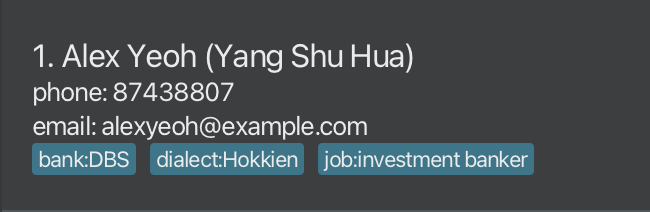
A tag is a name-value pair that allows the user to record any arbitrary information so desired about a profile. This is achieved by this command, which modifies (add, edit or delete) the tags of an existing person in the ScamBook. In the image below of an example profile in the app, each blue box represents a tag-value pair capturing some useful information about the person.
Format: tag INDEX [--add NAME:VALUE]... [--edit NAME:VALUE]... [--delete TAGNAME]...
NAME, VALUE, TAGNAME must NOT contain colons (:). Otherwise, an error will be displayed. Users are advised not to use -- as part of the tag name or tag value, as this may lead to undefined behaviour.
- Edits the person at the specified
INDEX. The index refers to the index number shown in the displayed person list. The index must be a positive integer 1, 2, 3, … - At least one of the optional fields must be provided, if not, nothing will happen upon execution (and success message will be displayed).
- Optional fields beginning with
--addrepresent tags to be added to the person. The tag name must NOT already exist. - Optional fields beginning with
--editrepresent tags to be modified of the person. The tag with the corresponding name must already exist. - Optional fields beginning with
--deleterepresent tags to be deleted. The tag with the corresponding name must already exist.
Examples:
tag 10 --add school:National University of SingaporeAdds a tag with nameschooland valueNational University of Singaporeto the tenth person. Note the support of spaces in the tag value.tag 2 --delete age --edit monthly income:10000Deletes an existing tag with nameageand edits an existing tag with namemonthly incometo contain10000from the second person. Note the support of spaces in tag name and the flexible ordering of parameters.tag 1 --add school:NUS --edit salary:10000 --delete ageAdds a tag with nameschooland valueNUS, edits an existing tag with namesalaryto contain10000and deletes an existing tag with nameagefrom the first person.
Filtering the list of persons : filter
Filters the list of persons in the ScamBook to show only those that match the specified parameters.
Each use of filter replaces the current filtered view instead of further narrowing the existing one. To clear the current filter and show all persons again, use filter with no parameters.
Format: filter [--name NAME]... [--phone PHONE]... [--email EMAIL]... [--status STATUS]... [--tag TAGNAME[:TAGVALUE]]...
- Multiple values of the same parameter type are combined using OR.
e.g.
--name John --name Janematches persons whose name containsJohnorJane. - Different parameter types are combined using AND.
e.g.
--name John --phone 9876matches only persons whose name containsJohnand whose phone number contains9876. NAME,EMAIL, andTAGVALUEare matched by case-insensitive partial match.PHONEis matched by partial match.STATUSmust be one ofNONE,TARGET,SCAM, orIGNORE.--tag jobmatches persons with a tag namedjob, while--tag job:managermatches persons with ajobtag whose value containsmanager.- Multiple tag filters are combined using AND.
Examples:
filter --name JohnShows all persons whose name containsJohn.filter --name John --name JaneShows all persons whose name containsJohnorJane.filter --status TARGET --status SCAMShows all persons whose status is eitherTARGETorSCAM.filter --phone 9876 --email gmail.comShows all persons whose phone number contains9876and whose email containsgmail.com.filter --tag jobShows all persons who have a tag namedjob, regardless of its value.filter --tag job:manager --tag region:westShows all persons who have both ajobtag containingmanagerand aregiontag containingwest.filter --name Tan --status TARGET --tag source:telegramShows all persons whose name containsTan, whose status isTARGET, and whosesourcetag containstelegram.
INDEX as a parameter, note the index seen on the list.
edit),
if the modified person(s) still fulfill the most recent filter applied, the displayed list will remain as the filtered list. Otherwise, the displayed list will revert to show all persons.
Sorting the list of persons : sort
Sorts the current list of persons by a specified field.
Format: sort [FIELD] [--asc|--desc] [--number|--alpha]
FIELDcan bename,phone,email, or a tag name (e.g.,income). Defaults tonameif omitted.--ascsorts in ascending order (default),--descsorts in descending order.--numbersorts numerically where possible (default),--alphasorts alphabetically.- Entries with missing values for the specified field are placed at the end.
Examples:
sortSorts by name in ascending order.sort phone --desc --numberSorts by phone number in descending numeric order.sort income --alphaSorts by theincometag alphabetically.
Marking person status: clearstatus, target, scam, or ignore
Sets the status of a specific person. We currently support 4 common statuses, each represented by its corresponding command name. Referring the image below (same image as in the Overview section, reproduced here for convenience), the emoji of each profile represents its status, as set by the four commands, in order.
- No status, via
clearstatus. - A potential target, via
target. - Already scammed, via
scam. - To be ignored, via
ignore.
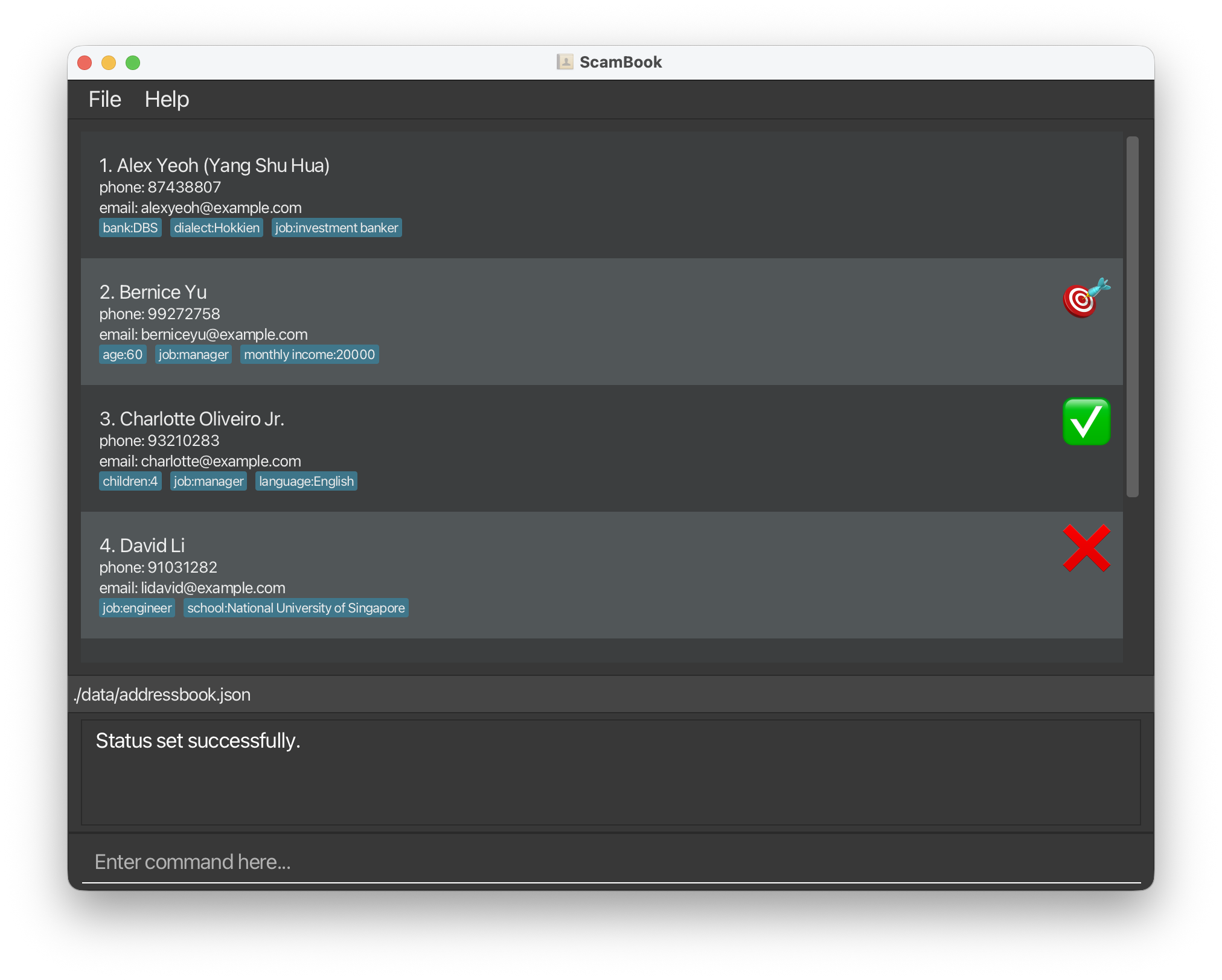
In the above image, the people have the status of no status, target, scam, and ignore respectively.
status_commandshould be replaced by either one ofclearstatus,target,scam, orignore.- Sets the status of the person at the specified
INDEX. - The new status overwrites any previously existing status, i.e. each person can have exactly 1 status at any time (no status is also a status).
- Setting a particular status for a person that already has the corresponding status will do nothing (and success message will be displayed).
Examples:
clearstatus 1clears the first person of any indicated status.target 2marks the second person as a potential target.scam 3marks the third person to have been scammed.ignore 4marks the fourth person to be ignored (e.g. if you think the fourth person is unlikely to be a victim and you should not pursue this further).
Listing all persons : list
Shows a list of ALL persons in the ScamBook. This command can be used after sort or filter to revert ScamBook to its original state.
Format: list
Clearing all persons : clear
Clears all persons from the ScamBook.
Format: clear
Deleting the app and all data: nuke
Deletes the app and all locally stored data.
Format: nuke
Viewing help : help
Shows a pop-up window explaining how to use the basic commands. For more details on how to use this application, you can also click on Copy URL to access the user guide.
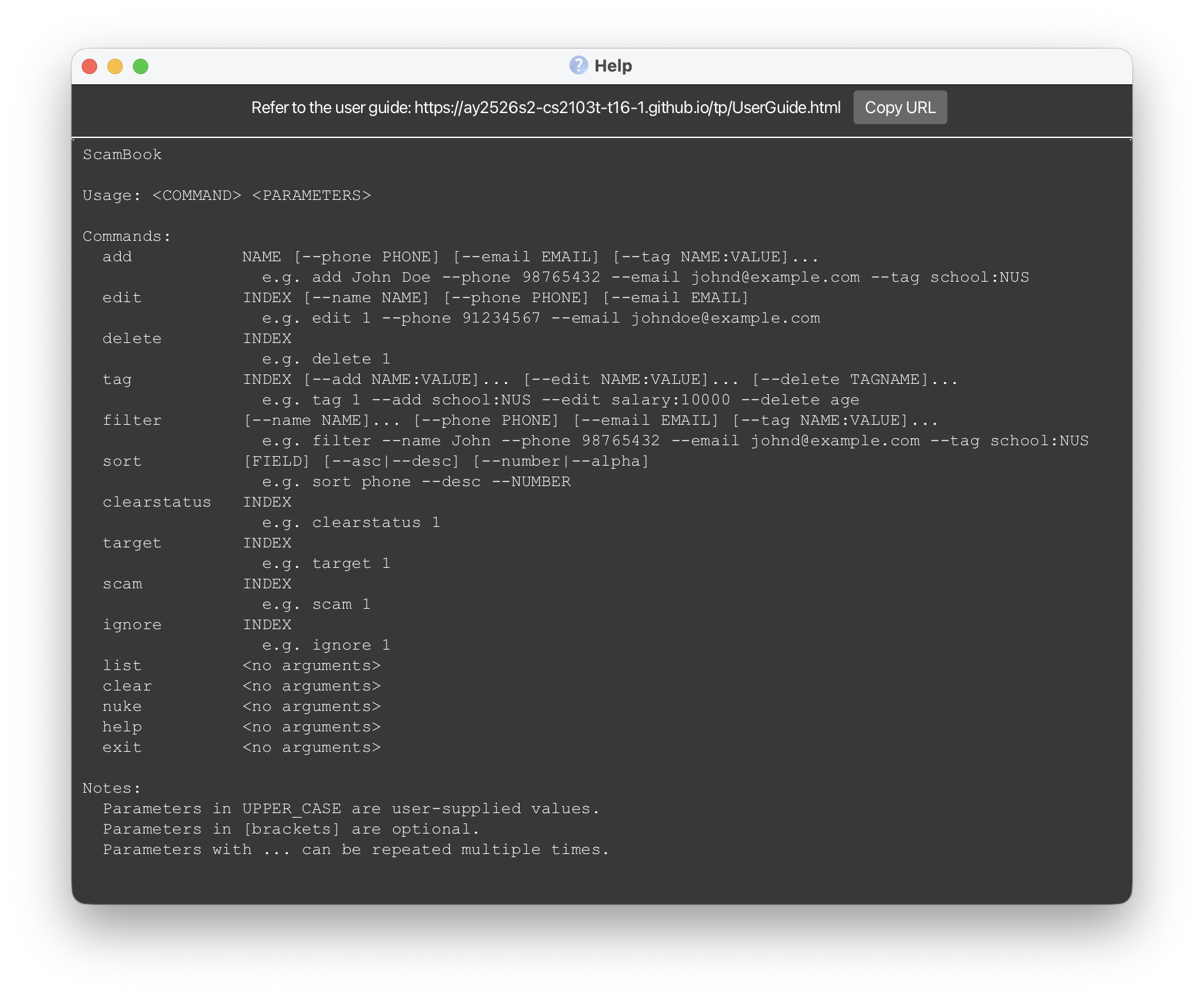
Format: help
Exiting the program : exit
Exits the program.
Format: exit
Constraints on input values
Name Constraints
Names can contain any alphanumeric characters, spaces, and the following special characters ,.()`'/-.
Names should also contain at least one character
Phone Constraints
Phones should be a number between 3 and 20 digits in length. It should not contain spaces, or the + sign.
Email Constraints
Emails should be of the format local-part@domain and adhere to the following constraints:
- The
local-partshould only contain alphanumeric characters and these special characters:+_.-. Thelocal-partmay not start or end with any special characters. - This is followed by a
@and then a domain name. The domain name is made up of domain labels separated by periods. The domain name must:- end with a domain label at least 2 characters long
- have each domain label start and end with alphanumeric characters
- have each domain label consist of alphanumeric characters, separated only by hyphens, if any.
Saving the data
ScamBook data are saved in the hard disk automatically after any command that changes the data. There is no need to save manually.
Editing the data file
ScamBook data are saved automatically as a JSON file [JAR file location]/data/addressbook.json. Advanced users are welcome to update data directly by editing that data file.
Furthermore, certain edits can cause the ScamBook to behave in unexpected ways (e.g., if a value entered is outside the acceptable range). Therefore, edit the data file only if you are confident that you can update it correctly.
Autoscroll
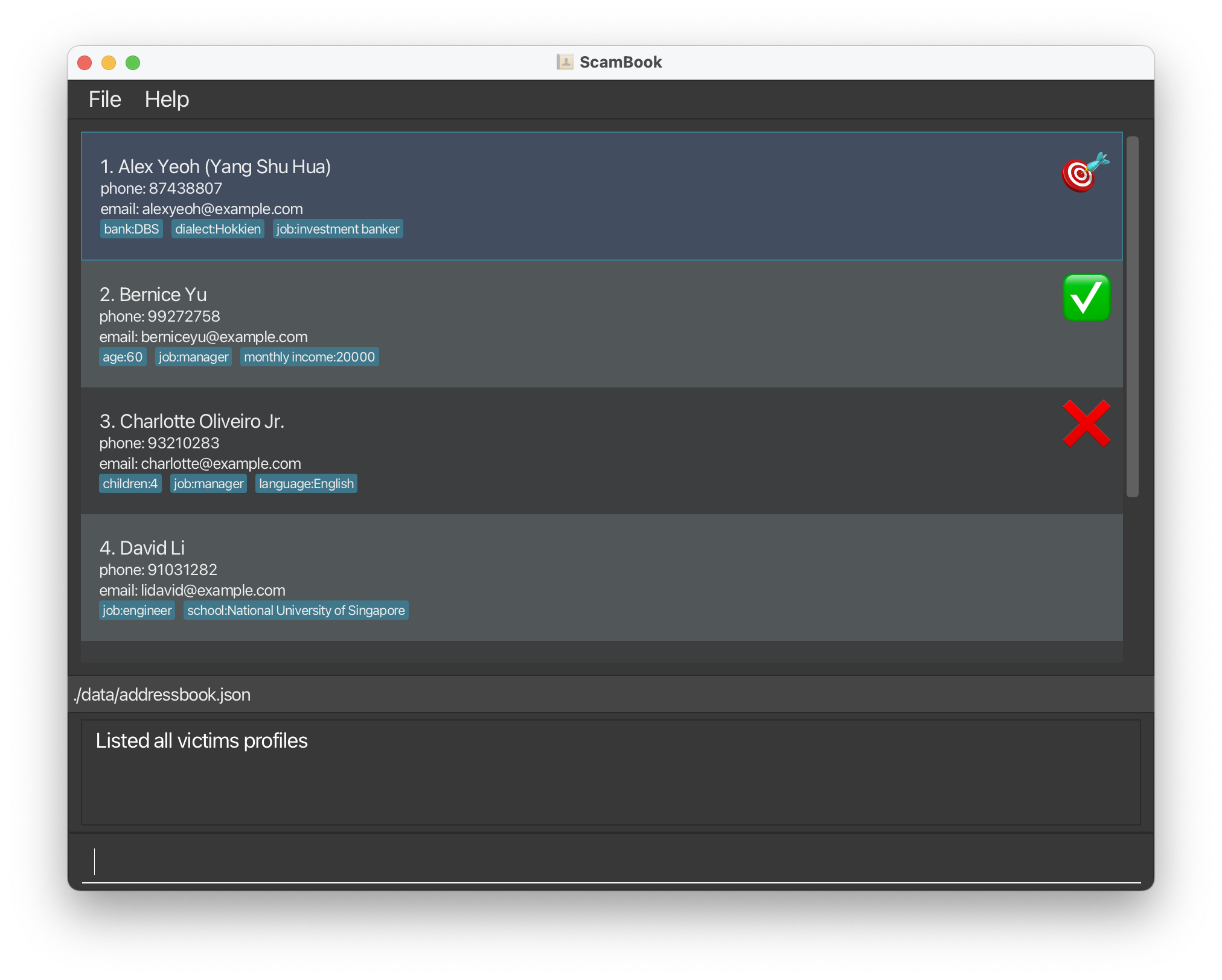
- After making modifications to a contact, the app will scroll to and select the relevant contact. This behaviour
occurs for these commands:
add,edit,tag,clearstatus,target,scam,ignore. - For these commands, the app will scroll to and select the first contact in the address book:
filter,sort,list.
FAQ
Troubleshooting
Q: My application does not launch when double-clicking on it. What should I do?
A: The most reliable alternative is to launch it via the command line. To do so, navigate to the folder that
you have placed ScamBook in. Right click and open a terminal there.
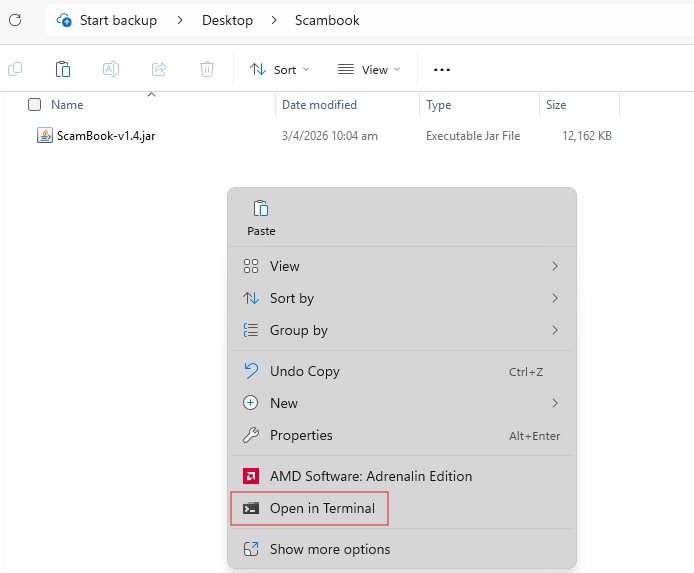
From the terminal, type java -jar <filename>.jar. In the above example, you can type java -jar ScamBook-v1.4.jar
and press enter. This will launch the application.
On a Mac, if the option to open a terminal at the folder does not exist, refer to this video guide to enable the option.
Q: When I opened ScamBook, my previous session's changes weren't saved. Why?
A: If ScamBook is in a write-protected folder, the program cannot save your data. Try checking your folder's properties, or moving ScamBook to another location.
Miscellaneous
Q: I have a question that is not answered here. Where can I ask it?
A: You can ask your question by creating a new issue in the ScamBook
repository.
Future work
The current tag name equality checking is done by checking string equality. In the future, we plan to add more equality checking semantics, to guard against accidental typos from users. In particular, we will incorporate case insensitivity and flexible whitespace (consecutive spaces will be treated as one). For example,
area codeandArea codewill be treated as equal tag names, and hence disallowed in commands requiring unique tag names (with more friendly error messages suggesting a typo was made). On the other hand,Area codecan be used to edit the tag ofarea codeof an existing person, providing more convenience.The current format for command parameters uses double dashes (
--), i.e. long options. This design choice was made because it ensures greater clarity in command formats, and also allows greater convenience in input values (single dashes can be used freely without having to escape it). Future work will support abbreviations, i.e. single dashes (-), just like command line applications, for greater convenience for experienced users.Currently, all data has to be either manually added via the commands, or by editing the
jsondata file. Future work will support more mechanisms for data importation, such as reading directly from a.csvor.xlsxfile.A scammer might have different personas when operating, such as pretending to be personnel from different banks. A possible future direction is to allow users to create multiple sets of ScamBooks, each with their own separate details, so every distinct persona can have its own list of contacts.
Another significant area for future implementation is better integer parsing. Currently, tag values are parsed as is, so values such as
$100000and$200,000are not recognised as numbers. This feature will allow more flexible interpretation of numbers, allowing thesortcommand to work on tags such assavings: $1,000,000.
Known issues
When using multiple screens, if you move the application to a secondary screen, and later switch to using only the primary screen, the GUI will open off-screen. The remedy is to delete the
preferences.jsonfile created by the application before running the application again.If you minimize the Help Window and then run the
helpcommand (or use theHelpmenu, or the keyboard shortcutF1) again, the original Help Window will remain minimized, and no new Help Window will appear. The remedy is to manually restore the minimized Help Window.nukecommand does not delete the application on Windows OS, due to a limitation of the OS disabling deletion by the app itself.
Commands summary
| Command | Functionality and Parameters |
|---|---|
add | Adds a new personNAME [--phone PHONE] [--email EMAIL] [--tag NAME:VALUE]...e.g., add John Doe --phone 98765432 --email johndoe@example.com --tag school:NUS |
edit | Updates the name/phone/email of an existing personINDEX [--name NAME] [--phone PHONE] [--email EMAIL]e.g., edit 1 --name Jane Doe --phone 91234567 --email newemail@example.com |
delete | Deletes an existing personINDEXe.g., delete 5 |
tag | Updates tags of an existing personINDEX [--add NAME:VALUE]... [--edit NAME:VALUE]... [--delete TAGNAME]...e.g., tag 1 --add school:NUS --edit salary:10000 --delete age |
filter | Filters the master list[--name NAME]... [--phone PHONE]... [--email EMAIL]... [--status STATUS]... [--tag TAGNAME[:TAGVALUE]]...e.g., filter --name John --phone 98765432 |
sort | Sorts the currently displayed list[FIELD] [--asc|--desc] [--number|--alpha]e.g., sort phone --desc --number |
clearstatus | Clears the status of an existing personINDEXe.g., clearstatus 1 |
target | Marks an existing person as a targetINDEXe.g., target 2 |
scam | Marks an existing person as scammedINDEXe.g., scam 3 |
ignore | Marks an existing person as ignoredINDEXe.g., ignore 4 |
list | Lists all contacts |
clear | Deletes all contacts |
nuke | Deletes this app and all locally stored data |
help | Shows the help message |
exit | Exits the application |